
Start with the connection your source actually has
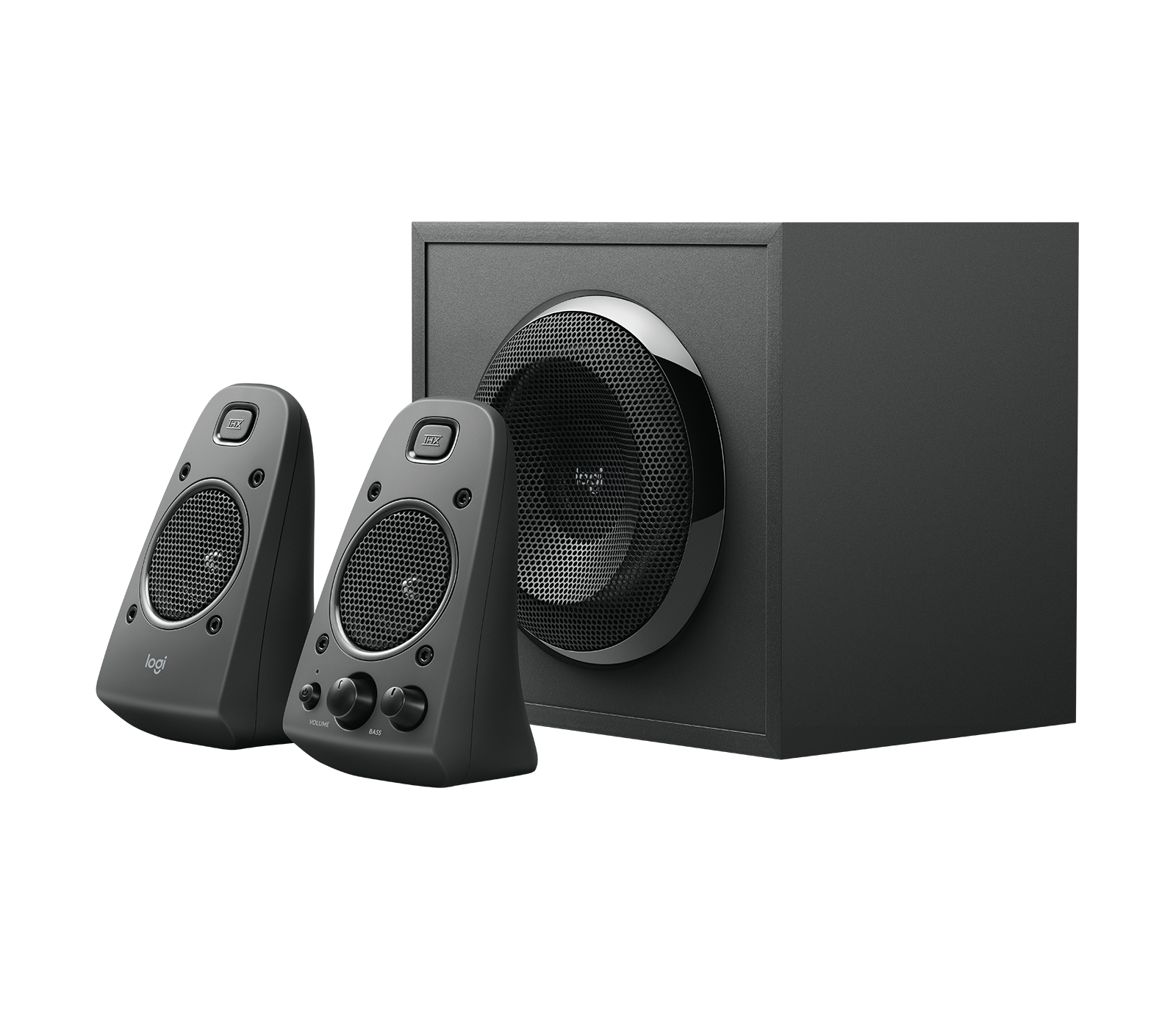
The Logitech Z625 is a 2.1 system: two satellites and a dedicated subwoofer, with an optical input for digital audio from a TV, computer, or gaming console. That optical input is the headline feature, but it is not the only path into the system. Before you run cables, check what your source offers. A TV or console with an optical output can send digital audio straight to the Z625. A device with only a headphone or line-out jack needs an aux connection instead.
That choice matters more than most people expect. Optical and aux are both legitimate ways to feed the Z625, but they behave differently at the source end. Pick the one your device supports natively, then set the source to match. Trying to force a connection the device does not offer is the most common reason a new speaker setup sounds wrong on the first attempt.
What the Z625 catalog confirms
- Z625 Speaker System with Subwoofer and Optical Input - Black: Includes a subwoofer for rich, deep bass response. The subwoofer is a separate unit, so its placement is a real decision rather than an afterthought.

Z625 Speaker System with Subwoofer and Optical Input - Black - Z625 Speaker System with Subwoofer and Optical Input - Black: Optical input for high-quality digital audio connection. This is the input to use when your TV, computer, or console has an optical output.
- Z625 Speaker System with Subwoofer and Optical Input - Black: Designed for clear audio from your TV, computer, or gaming console. The system is intended for shared entertainment sources, not just desktop listening.
Optical vs aux: which input to use on the Z625
Both inputs get audio into the system. The practical difference is where the conversion happens and what your source can control.
- Optical input: Use it when your TV, computer, or gaming console has an optical output. The Z625 accepts a digital audio connection, so the source sends audio digitally and the speaker system handles playback. This is the cleaner path for a fixed living-room or desk setup where the source stays in one place.
- Aux input: Use it when your device only offers a headphone or line-out jack. Aux is the fallback that keeps older laptops, phones, and some TVs usable with the Z625. Expect the source device's volume and tone controls to shape the sound more directly than with optical.
- Switching between them: If you connect both a TV by optical and a computer by aux, treat input selection as part of your routine. Confirm which input is active before diagnosing a sound problem, because a silent system is often just listening to the wrong source.
A sensible order for Z625 setup
Work through these in sequence so each step can be checked before the next one adds a variable.
- 1. Place the satellites and subwoofer before connecting anything: Set the two satellites at roughly ear height on your desk or either side of the TV, and put the subwoofer on the floor or a sturdy surface near the wall. The catalog does not specify a distance or angle, so use the layout of your room and keep the subwoofer where its cable reaches without strain.
- 2. Connect the source with the cable that matches its output: Use optical for a TV, computer, or console with an optical output; use aux for a device with only a headphone or line-out jack. Connect one source first rather than several at once.
- 3. Set the source volume low, then raise it gradually: Start quiet and bring the level up on the source and the speaker system together. This avoids a sudden blast of sound when the first track or channel plays.
- 4. Confirm the correct input is selected: If you hear nothing, check input selection before touching any other setting. A wrong input is the simplest explanation and the fastest to rule out.
- 5. Listen for buzzing or hiss before adjusting tone: Play a quiet passage and a bass-heavy passage. If you hear buzzing, deal with that before changing any sound settings, because tone adjustments can mask the symptom without fixing it.
Subwoofer placement tips for a 2.1 desk or TV setup
The Z625's subwoofer handles the low end, and where it sits changes how that low end reaches you. The catalog confirms the subwoofer is included but does not prescribe a position, so these are practical guidelines rather than manufacturer instructions.
- Keep it on the floor or a solid surface: A subwoofer on a flimsy shelf or a hollow desk can rattle the furniture along with the bass. A firm floor position reduces that risk.
- Avoid cramming it into a closed cabinet: Enclosed spaces can make bass sound boomy and indistinct. Leave some breathing room around the cabinet if your furniture allows it.
- Move it before you move the satellites: If the bass sounds uneven, try a different subwoofer position first. Small changes in where the subwoofer sits often matter more than small changes in satellite angle.
- Keep cable runs slack: A taut cable can pull the subwoofer out of position or strain the connection. Leave a little slack at both ends.
Tracing buzzing or hiss on the Z625
Buzzing and hiss have several possible sources, and the fix depends on which one you have. Work through these checks in order, changing one thing at a time so you know what made the difference.
- Check the input selection first: A system set to the wrong input can produce silence or faint noise that sounds like a fault. Confirm the active input matches the cable you are using.
- Lower the source volume and raise the speaker level: If the buzz fades when you reduce the source volume, the source is likely contributing it. If it stays the same, the speaker system or its power connection is the more likely culprit.
- Separate audio cables from power cables: Running an aux or optical cable alongside a power strip can introduce noise. Try routing them apart as a quick test.
- Test with a different source: Connect a phone or laptop by aux and play the same passage. If the buzz disappears, the original source or its cable is the issue, not the Z625.
- Check the subwoofer's surface: A rattling sound that follows the bass is often furniture, not the driver. Move the subwoofer to a solid surface and listen again.
- Try a different power outlet: If the buzz persists across sources and cables, test another outlet on a different circuit before assuming the speaker system is faulty.
Sound settings worth checking, and what the catalog leaves open
The supplied product information describes the Z625 as delivering deep bass and crisp highs, with a dedicated subwoofer and optical input. It does not list a specific bass or treble adjustment procedure, so treat any tone controls on the unit as something to explore by ear rather than follow a preset recipe. Start with the controls at their neutral position, play familiar material, and change one setting at a time.
The catalog also does not confirm a remote control, Bluetooth pairing, or a companion app for the Z625. If those features matter to you, verify them on the product page before buying rather than assuming them from the 2.1 format. What the supplied information does support is the core use case: a TV, computer, or gaming console feeding a two-satellite-plus-subwoofer system through optical or aux.
Z625 at a glance
- Z625 Speaker System with Subwoofer and Optical Input - Black: Logitech Z625 Speaker System with Subwoofer and Optical Input, Black. The model name itself tells you the two defining features: a subwoofer and an optical input.
- Z625 Speaker System with Subwoofer and Optical Input - Black: Speaker system with subwoofer provides a complete audio solution. You get satellites and low-end in one package, so plan space for three units, not two.
- Z625 Speaker System with Subwoofer and Optical Input - Black: Black finish complements a variety of setups. The single black colorway keeps the system visually consistent on a desk or beside a TV.

