
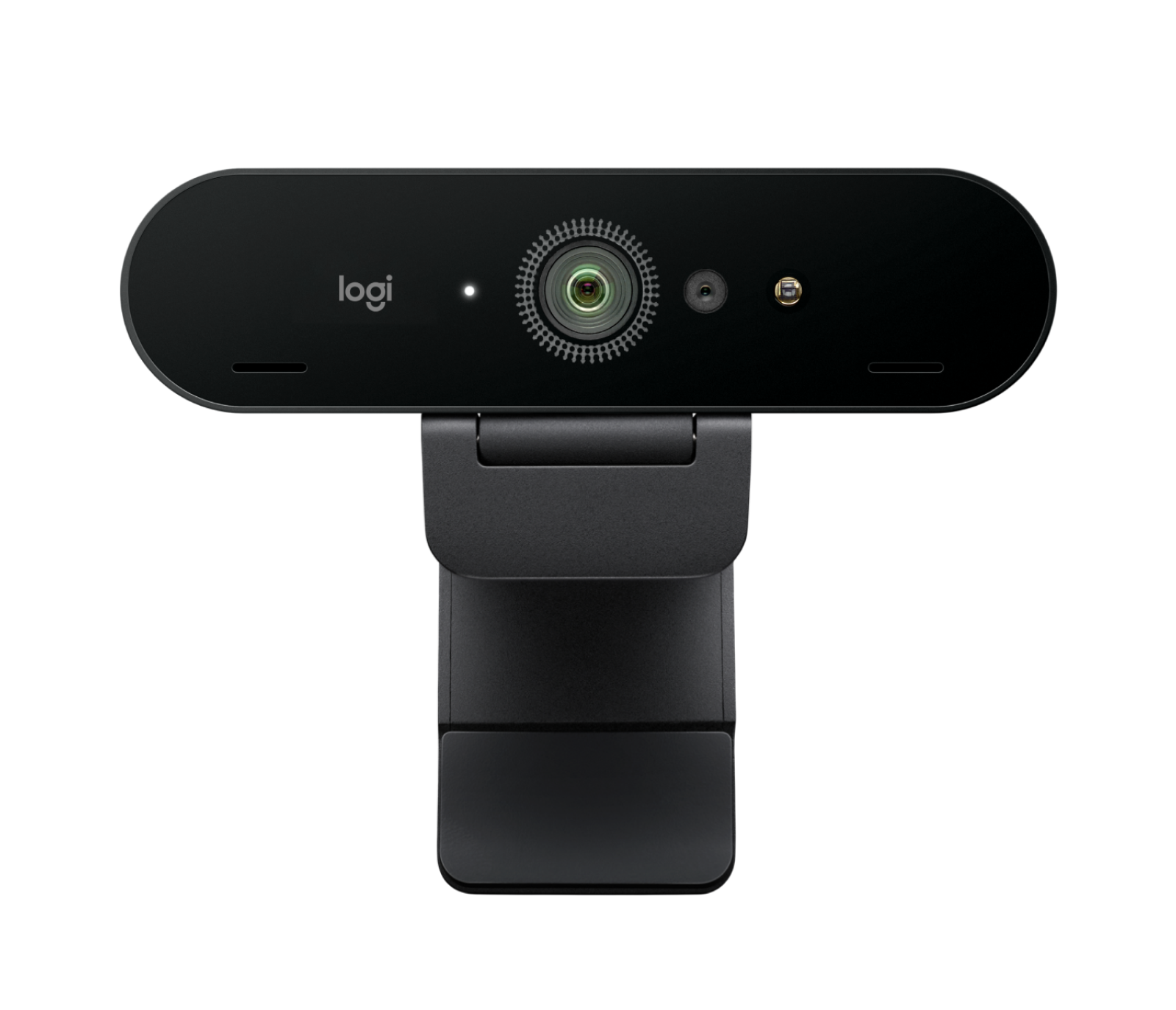
Start with what the Brio 4K actually promises
The Logitech Brio 4K in Graphite is built for high-resolution video capture, which means it can deliver sharp, detailed video calls when conditions are right. But blurry video, poor lighting, and grainy images often come from factors outside the camera itself. Before you blame the hardware, it helps to know what the catalog confirms and what it doesn't.
The supplied record confirms 4K resolution and a graphite finish, but it does not include detailed specifications on autofocus behavior, exposure controls, or software settings. That means any fix you try should be based on general webcam troubleshooting principles, not on assumptions about features the Brio 4K may or may not have.
What the catalog confirms about the Brio 4K
- Brio 4K - Graphite: 4K resolution for sharp video quality This is the core capability you're paying for. If your video looks blurry, the camera is capable of much more—so the issue is likely in setup, lighting, or focus.

Brio 4K - Graphite - Brio 4K - Graphite: Graphite color option available A minor point for troubleshooting, but it confirms the model variant. Color does not affect video performance.
Why blurry video happens and what to check first
Blurriness on a 4K webcam usually comes from one of three places: the lens is out of focus, the subject is too close or too far, or the video pipeline is being compressed or downscaled before it reaches your call. Start by checking the lens for smudges or dust—a simple microfiber wipe can make a surprising difference. Then confirm that your video conferencing app is actually set to use the Brio 4K and not your laptop's built-in camera.
Next, look at your lighting. Autofocus systems struggle in low light, and many webcams will hunt for focus or produce soft images when the scene is dim. If you're in a dark room, adding a desk lamp or facing a window can help the camera lock focus more reliably. Also check your distance from the camera: sitting too close can push you outside the optimal focus range, while sitting too far can make you appear small and soft.
Quick checks for blurry video
- Clean the lens: Use a dry microfiber cloth. Avoid paper towels or rough fabrics that could scratch the glass.
- Confirm the app is using the Brio 4K: In Zoom, Teams, or Meet, go to video settings and select the Brio 4K as the camera source.
- Improve front lighting: Face a light source rather than sitting with a bright window behind you. This reduces silhouette effects and helps autofocus.
- Adjust your distance: Try sitting about an arm's length away. If the image is still soft, move slightly closer or farther to find the sharpest point.
Lighting problems: exposure, grain, and backlight
Webcam lighting problems often show up as grain (noise) or poor exposure. Grain appears when the camera increases sensitivity in low light—it's a compensation, not a defect. The fix is more light on your face, not a settings change. Exposure issues, where you look too dark or too bright, usually come from strong backlighting or uneven lighting. If you have a window behind you, close the blinds or move your desk so the light falls on your face.
The Brio 4K's catalog entry does not list manual exposure controls or HDR support, so don't assume you can fix exposure with software alone. In most apps, you can adjust brightness and contrast, but these are software tweaks that may not match the camera's native capabilities. Start with physical lighting changes first.
Practical lighting fixes for grainy or dark video
- Add a front-facing light: A simple desk lamp aimed at your face (not the camera) can dramatically reduce grain and improve clarity.
- Avoid backlight: Turn off or dim lights behind you, and close curtains if a bright window is in frame.
- Use diffuse light: Bouncing light off a wall or using a diffuser softens shadows and reduces harsh contrast.
- Check app exposure settings: Some apps let you adjust exposure or low-light compensation. If available, try small changes and see if grain improves.
When to consider the Brio 4K as your next webcam
If you've tried the basics and your current webcam still can't deliver sharp, well-lit video, the Brio 4K's 4K resolution gives you more room to crop and still look clear. The graphite finish is neutral enough for most workspaces. But keep in mind that the catalog doesn't confirm specific autofocus features or low-light performance, so if those are critical, you may want to verify with the manufacturer before buying.
Brio 4K at a glance
- Brio 4K - Graphite: 4K resolution for sharp video quality Higher resolution means more detail, which can help you appear sharper even after cropping or digital zoom.
- Brio 4K - Graphite: Graphite color option available A neutral color that fits most setups, but not a factor in video quality.

